 MakerSketch
Sketching on planes and faces
Every part starts as a flat sketch, on a plane or on a face of the part.
Pick where to draw
Tap Sketch, then a plane: Top, Front or Right. Once there is a solid, you can tap any flat face of it to sketch right on that face. That is how you put a hole in a side or a letter on a top.
capture: the Sketch plane picker: Top, Front and RightThe drawing tools
The rail on the left holds the tools. Some share a slot; touch and hold the slot to switch.
- Line or Polyline
- Circle or Arc
- Rectangle or Polygon
- Text
- Distance, Area and Point, for measuring
- Move, Duplicate, Rotate, Offset, Trim, Extend, Fillet and Erase
capture: the tool rail, with a shared slot held openClosed shapes become profiles
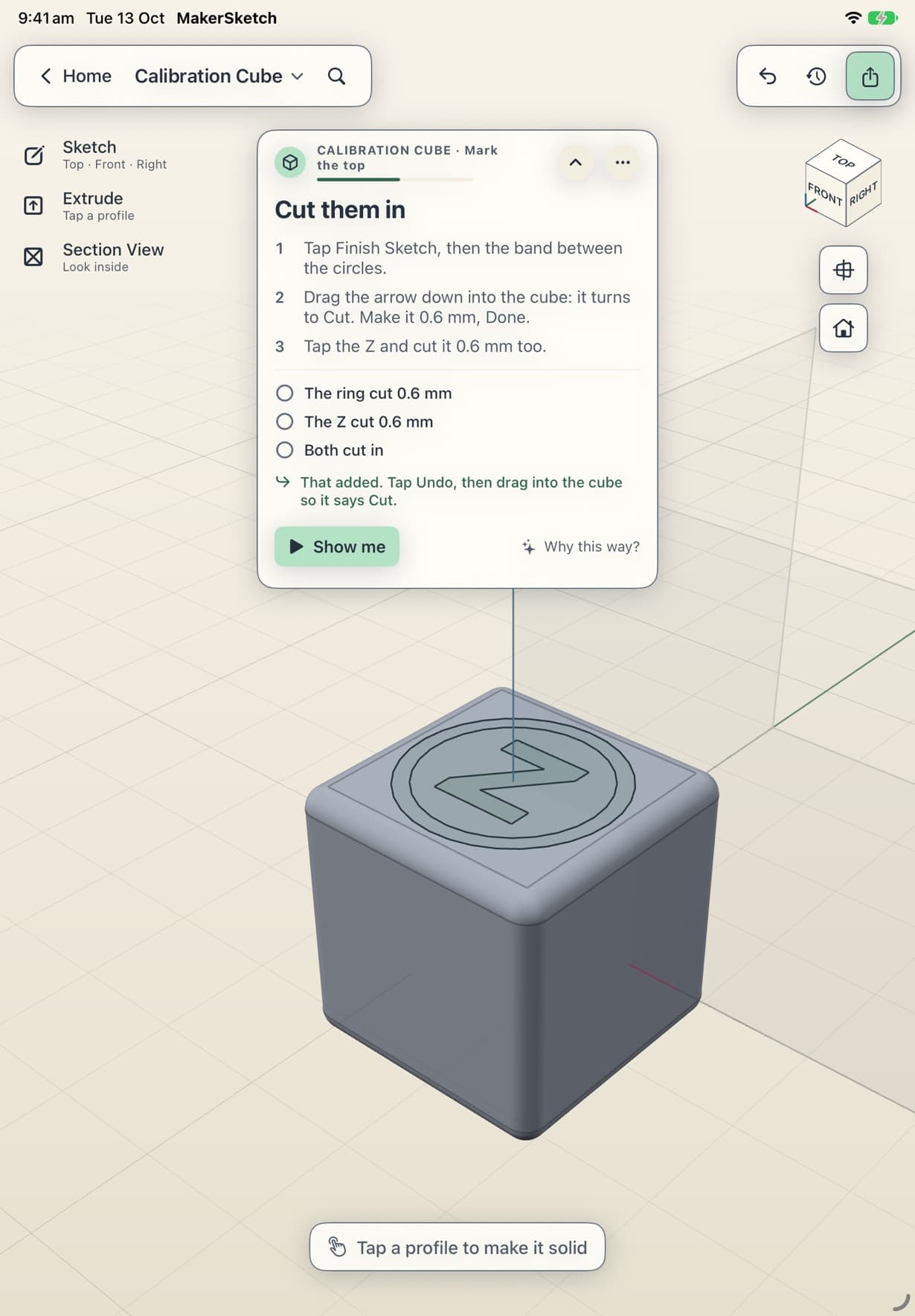
A shape that closes up, like a rectangle or a circle, is a profile. Profiles are what you push into 3D. Tap Finish Sketch when you are done drawing.
Stuck in the app?
In a project, tap Show me on the coach card to watch the step played out. Support has an email address if that doesn't do it.