 MakerSketch
Getting started
Open a project, follow the coach, and pick up where you left off.
Start with a project
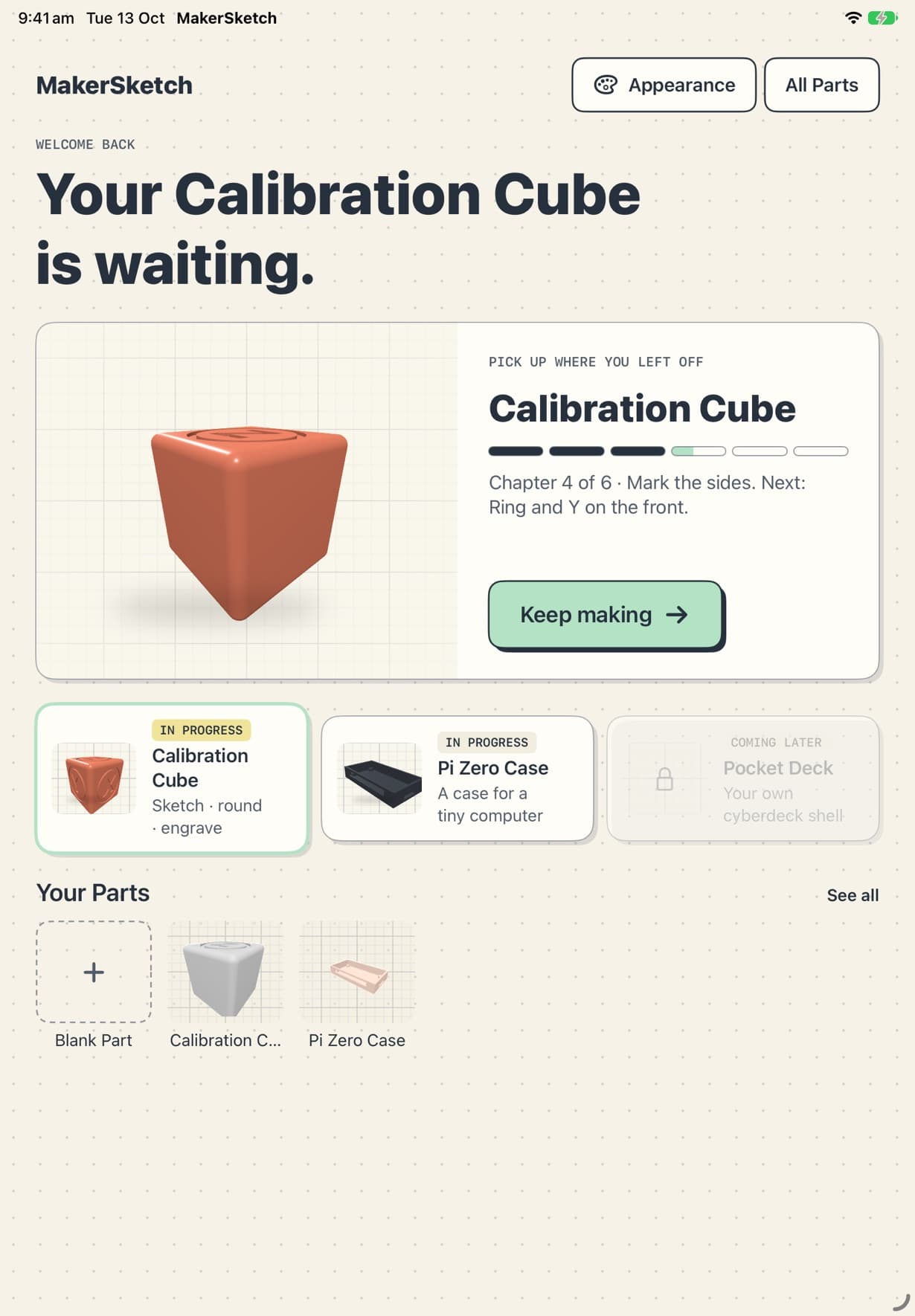
Home shows the projects in order. The first is the Calibration Cube: a 1 inch cube you print and measure, so the first thing you design tells you something about your printer.
capture: Home with the project path, the Calibration Cube firstThe coach card
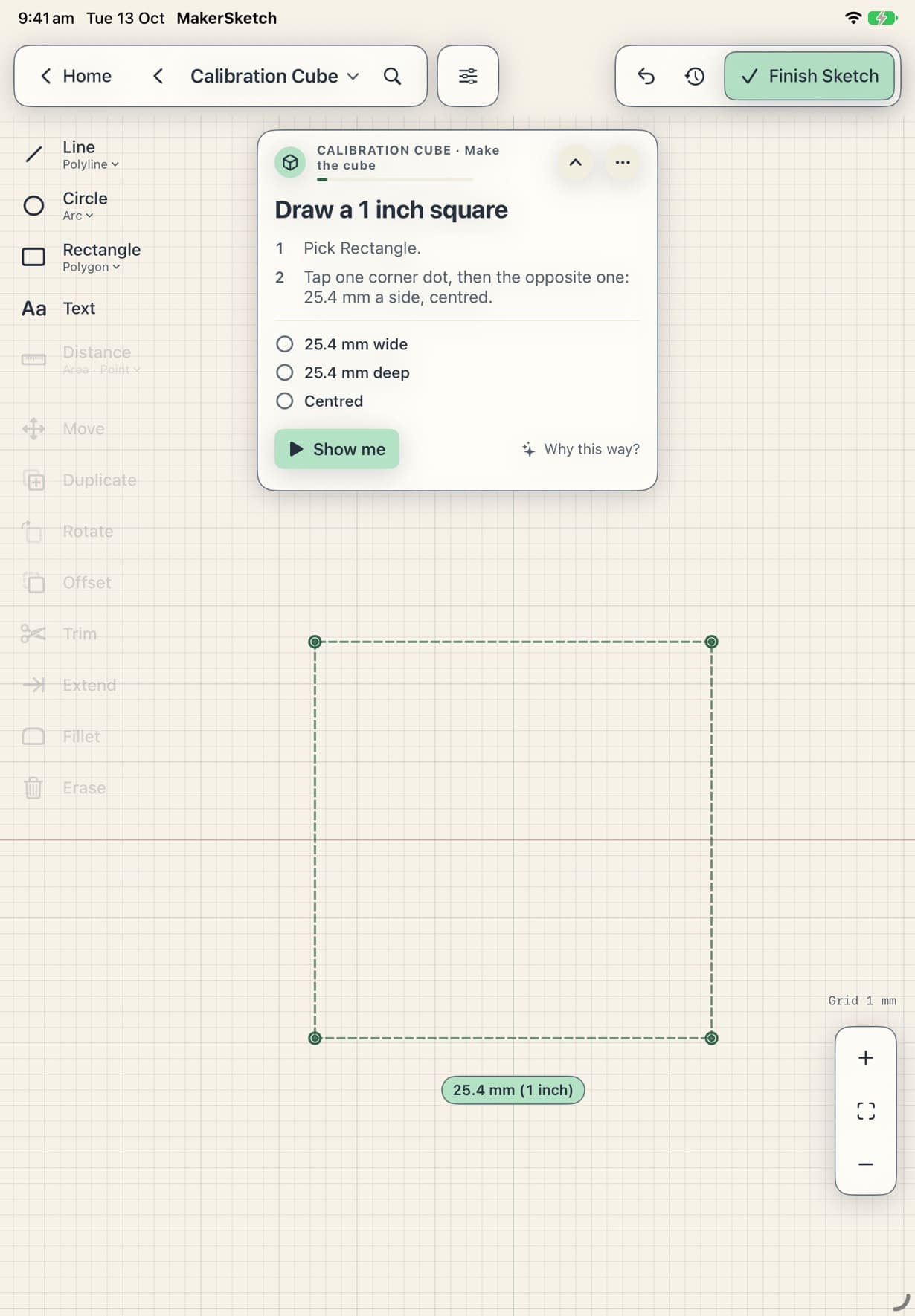
Each step sits on a card over the real editor. It says what to do, then ticks off each check as your model passes it. If something isn't right, the card says what to fix.
- Show me plays the step with a ghost finger. Tap Stop to take over.
- Why this way? explains the reason behind the step.
- The ••• menu has Start this step again, Back a step, and Leave the project. Leaving keeps your Part as it is; only the steps and checks go away.
Coming back
Your progress is saved inside the Part. On Home, Pick up where you left off shows the chapter you are on; tap Keep making to go straight back to it.
Stuck in the app?
In a project, tap Show me on the coach card to watch the step played out. Support has an email address if that doesn't do it.