Guided 3D projects for iPad

Learn to make things you can hold.

Guided 3D projects on iPad teach you to design and print, with help inside the editor. Start with a calibration cube, then make a case for a Raspberry Pi.

Free to startNo accountNo ads

iPad · iPadOS 27 or later · No CAD experience needed

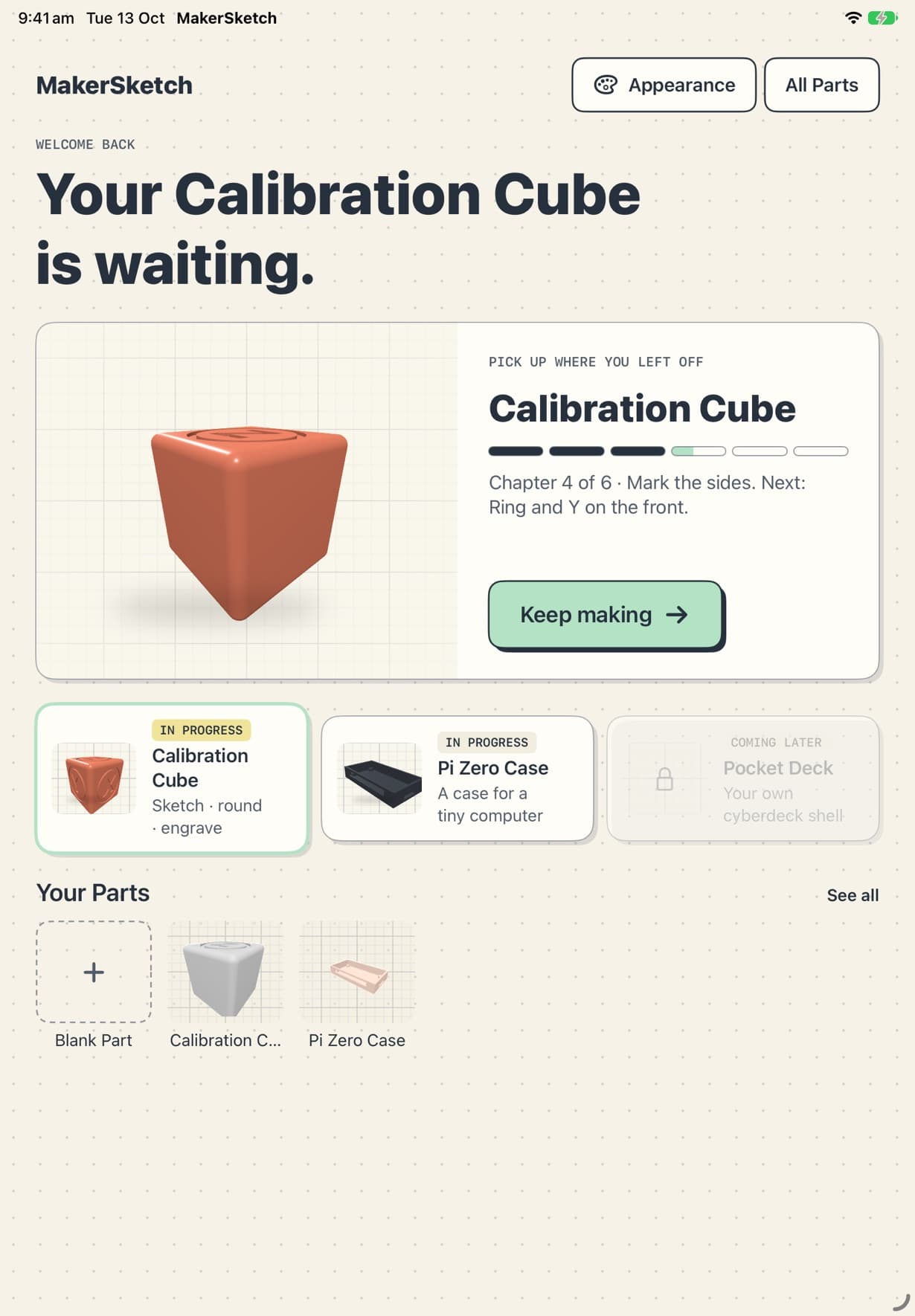
MakerSketch's Home screen: “Your Calibration Cube is waiting”, with chapter 4 of 6 under Pick up where you left off, a Keep making button, the project path and Your Parts.

Pick up right where you left off

Project 2

A Pi Zero Case, start to finish

About 25 minutes, sped up

How it works

From first sketch to a part in your hand

  1. 1

    Follow a project

    The coach walks you through it in the real editor, one checked step at a time.

  2. 2

    Export the STL

    Send it to your slicer, a friend's printer or a print service.

  3. 3

    Print it and check it

    Measure the cube with calipers. Fit the Pi in its case. Then make the next one.

What MakerSketch does

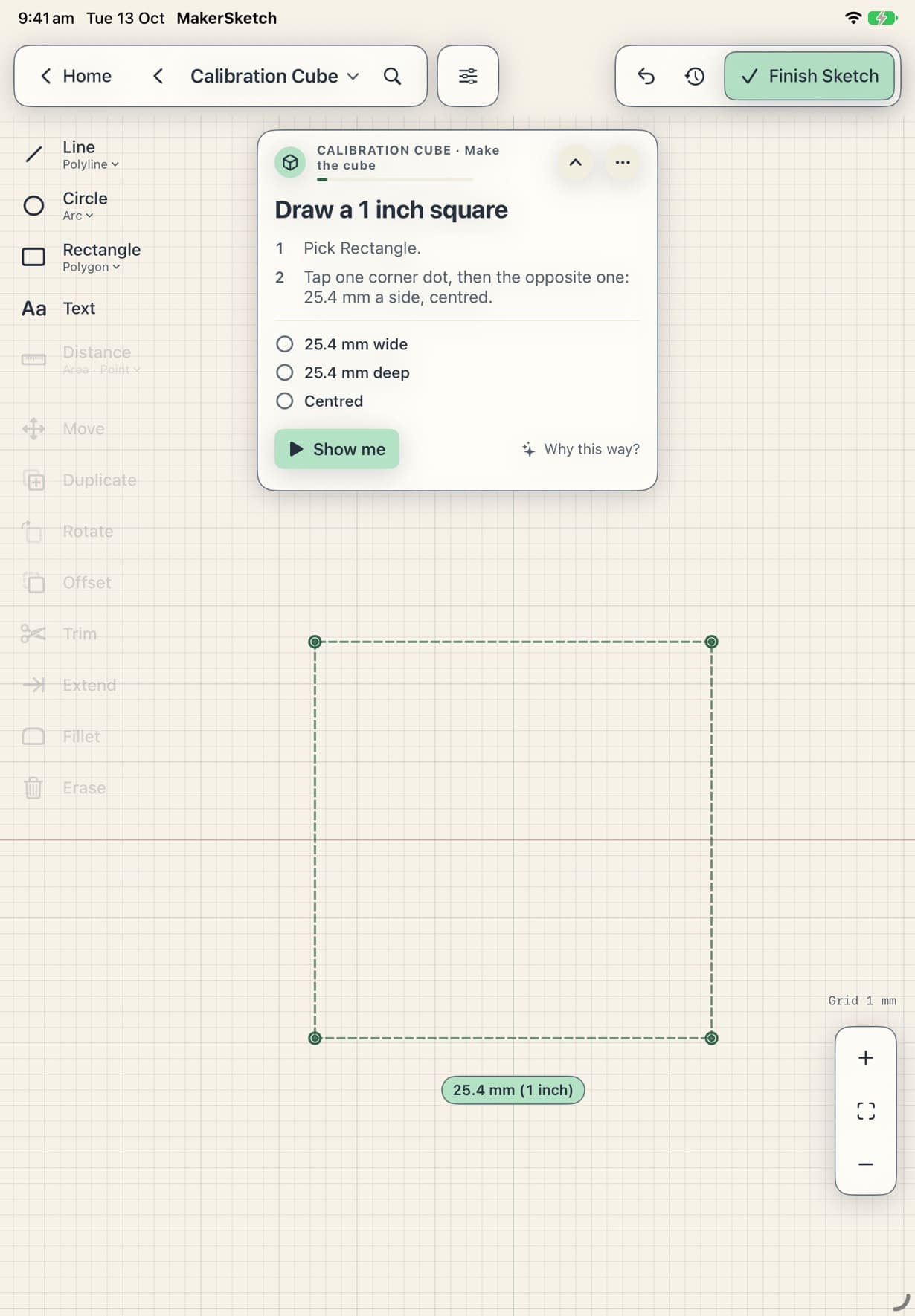
The coach card for the Calibration Cube's first step, “Draw a 1 inch square”, over a 25.4 mm square drawn on the sketch grid.

The coach

A coach beside you, every step

Each project shows the next move, checks your model as you go, and explains what to fix.

  • Checks tick off as your model passes them
  • Stuck? Show me plays the step with a ghost finger
  • Why this way? explains the reason behind it
How the coach works →
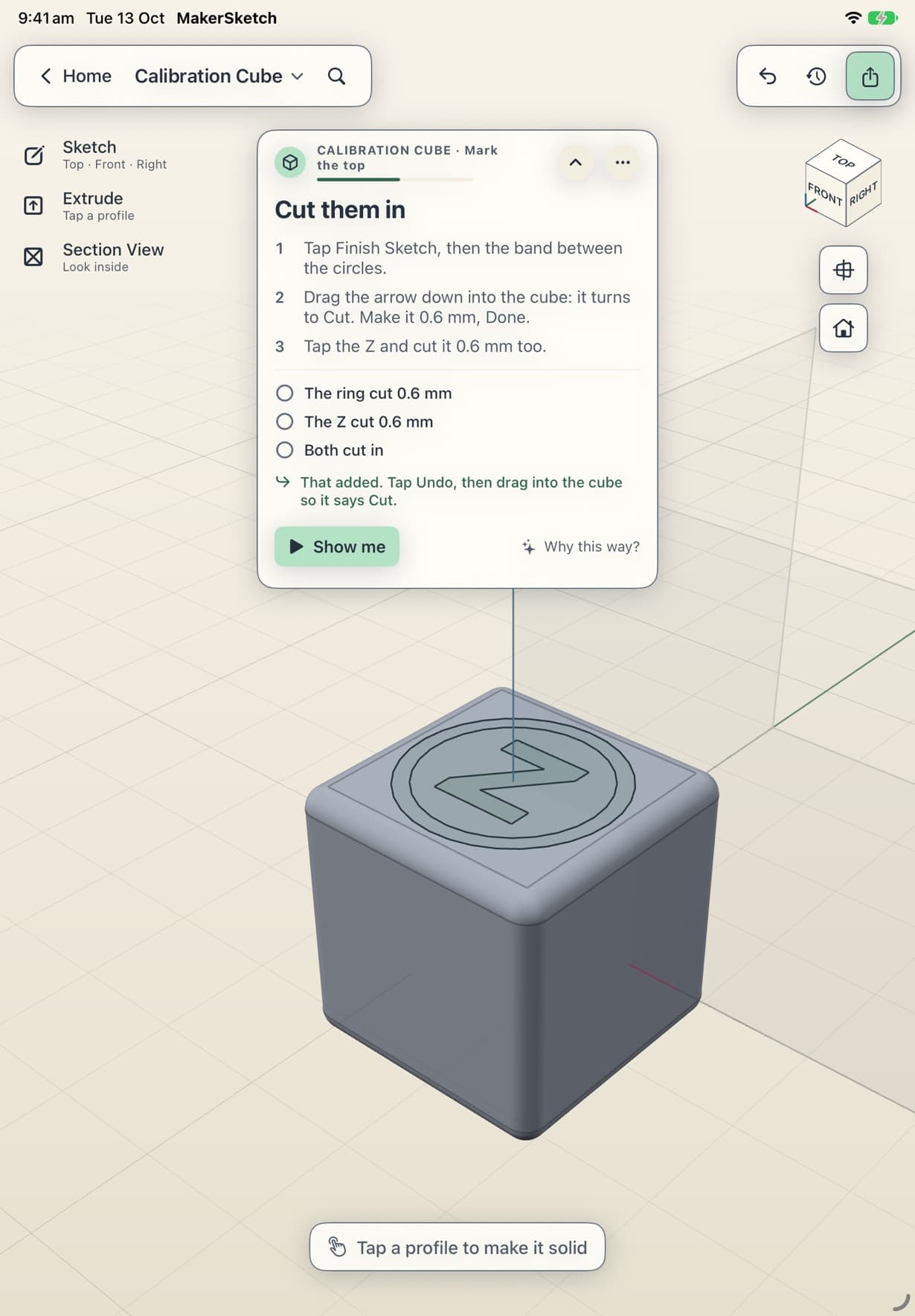
A ring and the letter Z sketched on the cube's top face, with the coach card listing the cut to make next.

The editor

Real CAD that grows with you

Sketch on planes or right on a face, with exact sizes. The same tools the projects teach are there when you go your own way.

  • Sketch on Top, Front or Right, or on any flat face
  • Type exact sizes as you draw
  • Extrude, cut, revolve, round edges and engrave text
Sketching on faces →

The print

Ready for your printer

Your Parts are ordinary files in the Files app, and every one exports for printing.

  • STL in millimetres, for any slicer
  • STEP for other CAD apps, where your model supports it
  • Share straight to a slicer app, or save to Files
Exporting STL and STEP →

Projects

Start with something useful

Each one ends in a real print, and teaches moves the next one uses.

Questions

Before you start

Anything else? Support has more, and an email address. The guide covers every tool.

What does it cost?

The guided tutorials and any two working projects are free. For more working projects at once, it's $5/month. If you cancel, your Parts and exports stay yours. There are no ads and no account.

Do I need a 3D printer?

No. You can make every project and export the file without one. See No printer yet.

Do I need an Apple Pencil?

No. Everything works with a finger. Apple Pencil adds shortcuts like quick lines and scribble to erase. See Finger and Apple Pencil.

Which iPads does it run on?

MakerSketch is for iPad, and needs iPadOS 27 or later.

Where are my files?

In the Files app, under On My iPad › MakerSketch, unless you moved them. See Your Parts in Files.

Price

Start free.

Pay only if you want more projects on the go at once.

Free

Most makers start here

Everything you need to learn and print.

$0

  • The guided tutorials
  • Any two working projects
  • Export STL and STEP
  • Your Parts are yours, in Files

More projects

For when two projects at once isn't enough.

$5/month

  • Everything in Free
  • More working projects at once
  • Cancel any time: your Parts and exports stay yours, and you go back to two working projects

Works with a finger. Pencil makes it faster.

Your first part is about 20 minutes away

The Calibration Cube is 1 inch, rounded, with X, Y and Z marked, and it prints in well under an hour.

One email when it's out, nothing else. Privacy