 MakerSketch Docs
Tools
Extrude
Push a closed sketch shape out into a solid, or cut it into one.

Extrude is the first solid step of most parts. You draw a flat, closed shape in a sketch, then pull it straight up off its plane into a block, a plate or a peg. Push it down into a solid that's already there and it cuts instead: a pocket, a slot or a hole.
When to use it
- Use Extrude when the shape is the same all the way through, like a box, a bracket, a sign's letters, or a pocket for a magnet.
- Use Revolve for something round that turns around a line: a knob, a cup, a wheel. It's in the same place as Extrude, beside it on the bar.
- Use Loft when the shape changes on the way up, such as a square base that rises to a round top.
- Give Extrude a Draft when the shape stays the same but its walls should lean: a base that tapers to the print bed, or a pocket that's wider at the top. Every side leans alike, cut corners and curves too.
Lean the walls with Draft
- Set up the extrude as usual, then tap
Drafton the bar. - Type the angle on the keypad and tap
Set. A positive angle leans the walls in as they go away from the sketch; a negative one leans them out. The preview leans as you type. - Tap
Done. The draft shows under the extrude in History, where you can change it later. To add one to an extrude that has none, tap…on its row, thenDraft….
The draft is worked out from how far the walls move: 6.5 mm at 21° leans them about 2.5 mm in (6.5 × tan 21°). A rounded or cut corner smaller than that lean shrinks away on the way up and goes on as a sharp corner, as in other CAD apps. Fillet rounds a drafted extrude's edges too: a round on its top or bottom edges follows the leaning walls, meeting them smoothly, whether you round first or add the draft after. Shell hollows a drafted extrude with a cavity that leans with its walls, so the walls stay the thickness you typed all the way up. A drafted extrude can't take a Thread yet; set its Draft to 0 for that.
Make a solid from a sketch
-
In a part, draw a closed shape in a sketch: a rectangle, a circle, or lines that end where they started. Tap
Finish Sketch.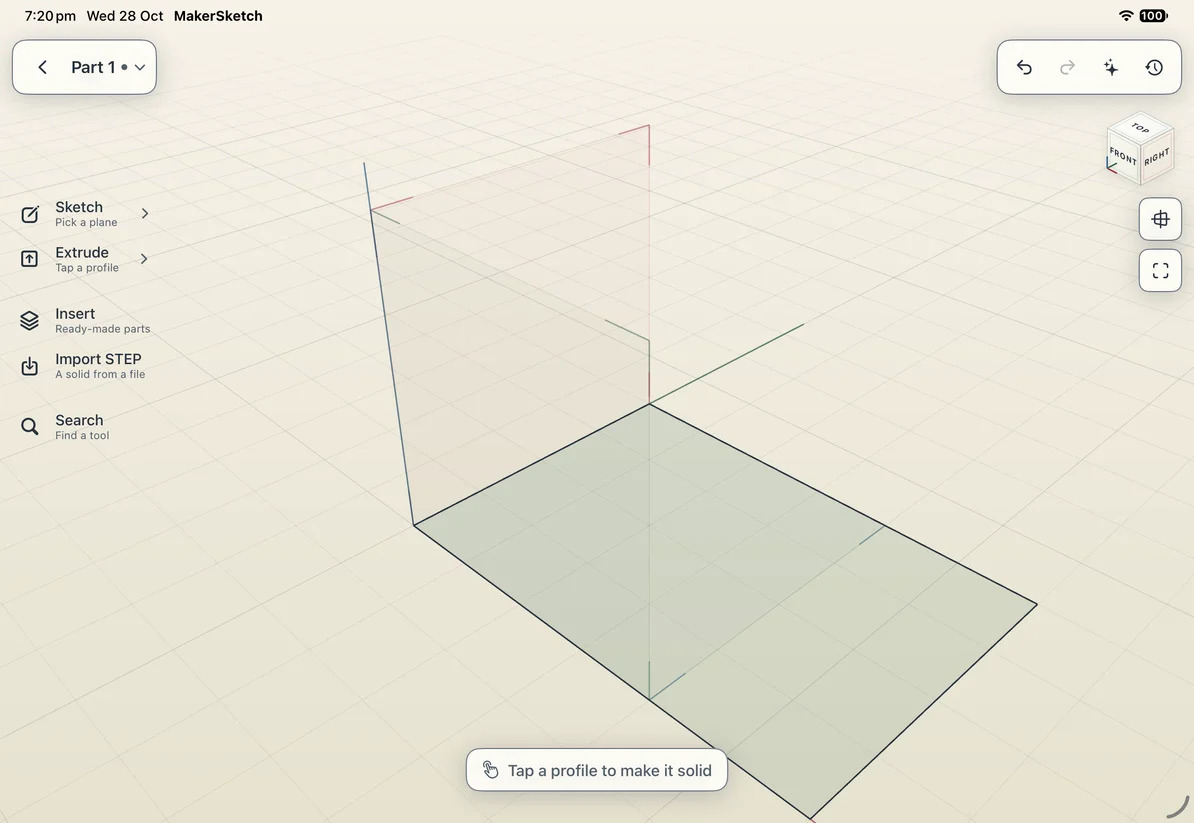
A closed shape is shaded: it's ready to extrude. MakerSketch calls it a profile. -
Tap the shape. It rises 10 mm straight away as a see-through preview, with an arrow on top and the Extrude bar along the bottom of the screen. (Tapping
Extrudein the rail does the same when there's only one shape; otherwise it asks you to tap one.)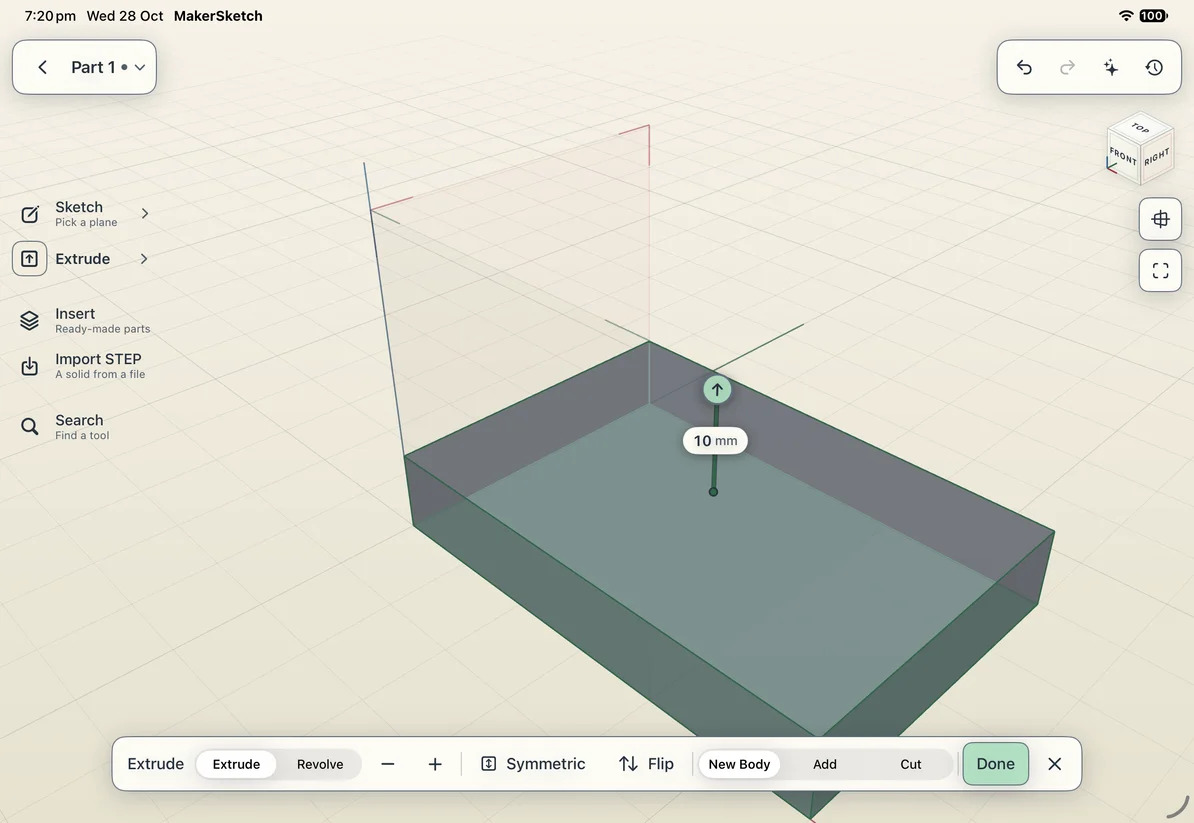
The preview, the arrow and the Extrude bar. -
Drag the arrow to make it taller or shorter. The number beside the arrow shows the height as you go. For small changes, tap
−or+on the bar: each tap is 1 mm (0.5 mm below 2 mm).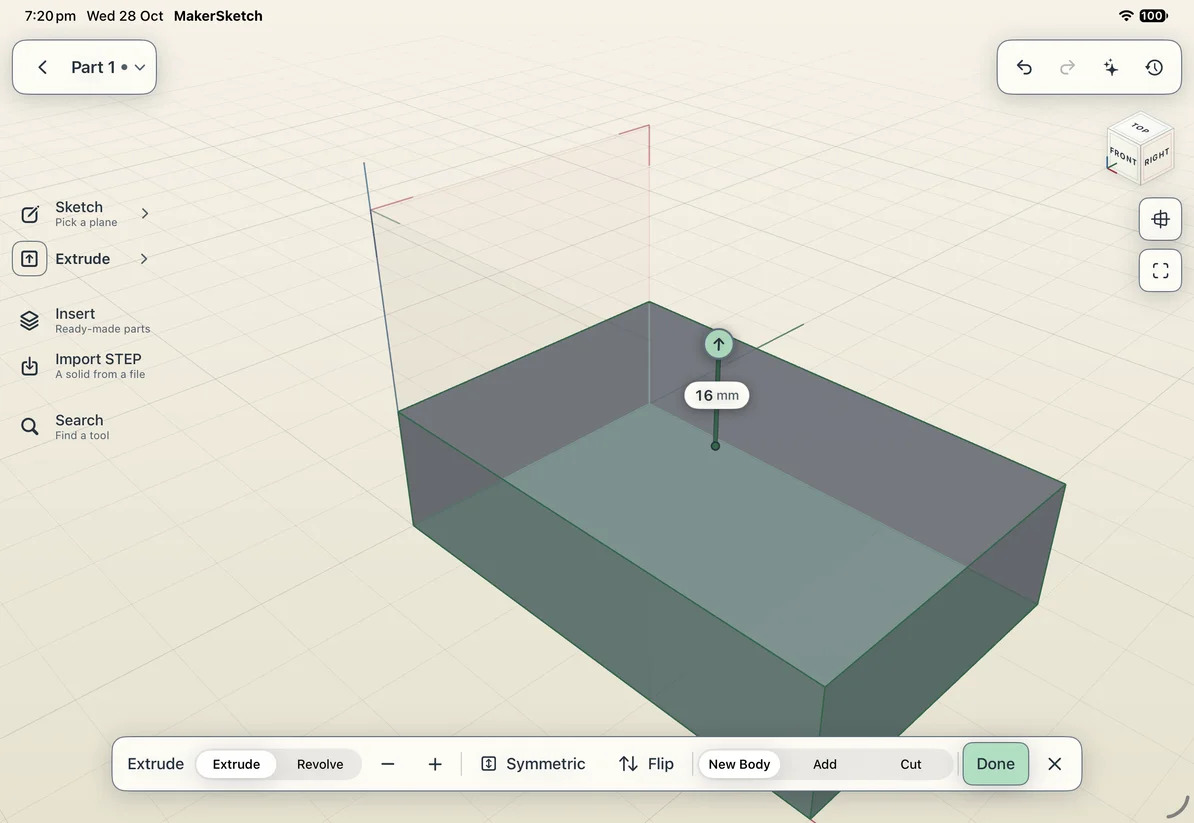
-
To give an exact height, tap the number beside the arrow, type it on the keypad, and tap
Set. Set makes the solid at once.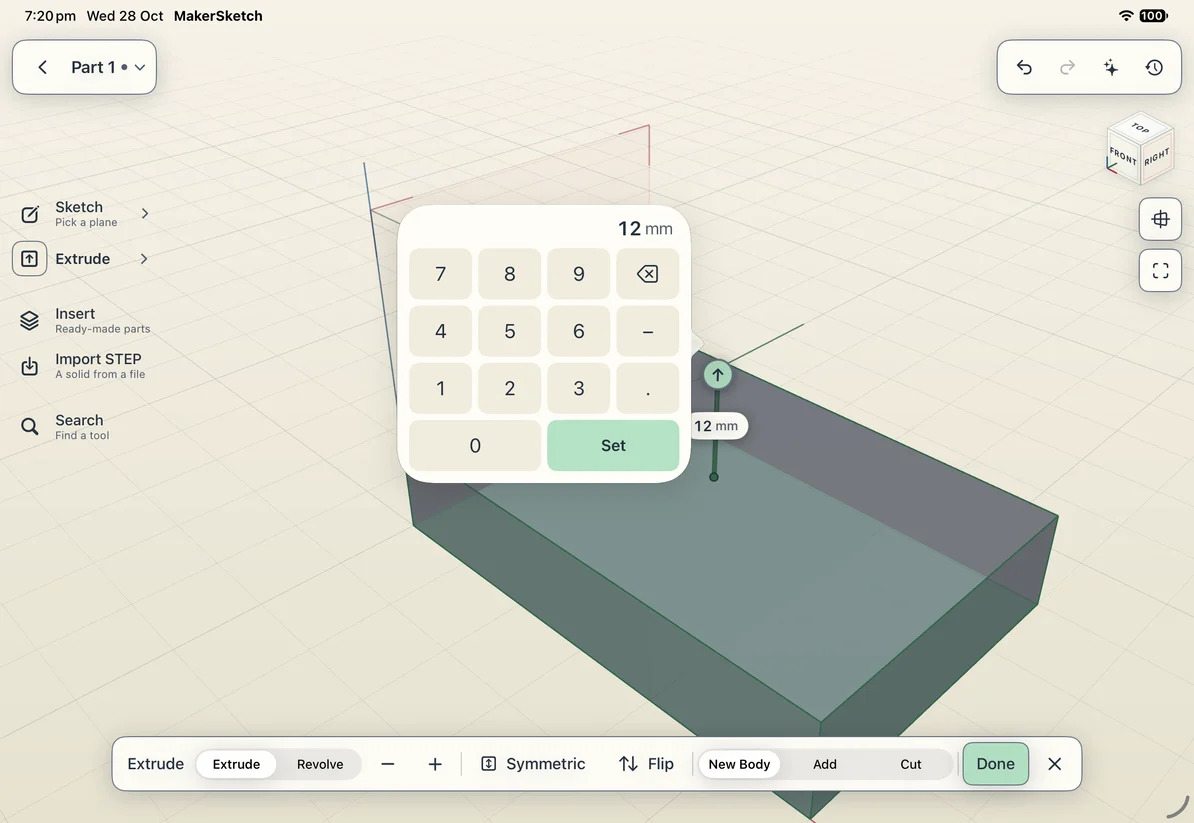
-
If you dragged instead, tap
Done. MakerSketch says what it made ("Extruded 12 mm") with anUndobutton, and the step joins the part's History as Extrude 1.


Cut into a solid
To cut a pocket or a hole, sketch on the face you want to cut into, then push the shape into the part.
-
Tap a flat face of the solid to start a sketch on it, draw the shape of the cut, and tap
Finish Sketch. -
Tap the shape, then drag its arrow down into the part: from a face, pushing in picks
Cutfor you. You can also tapCuton the bar yourself. The preview shows what will be taken away.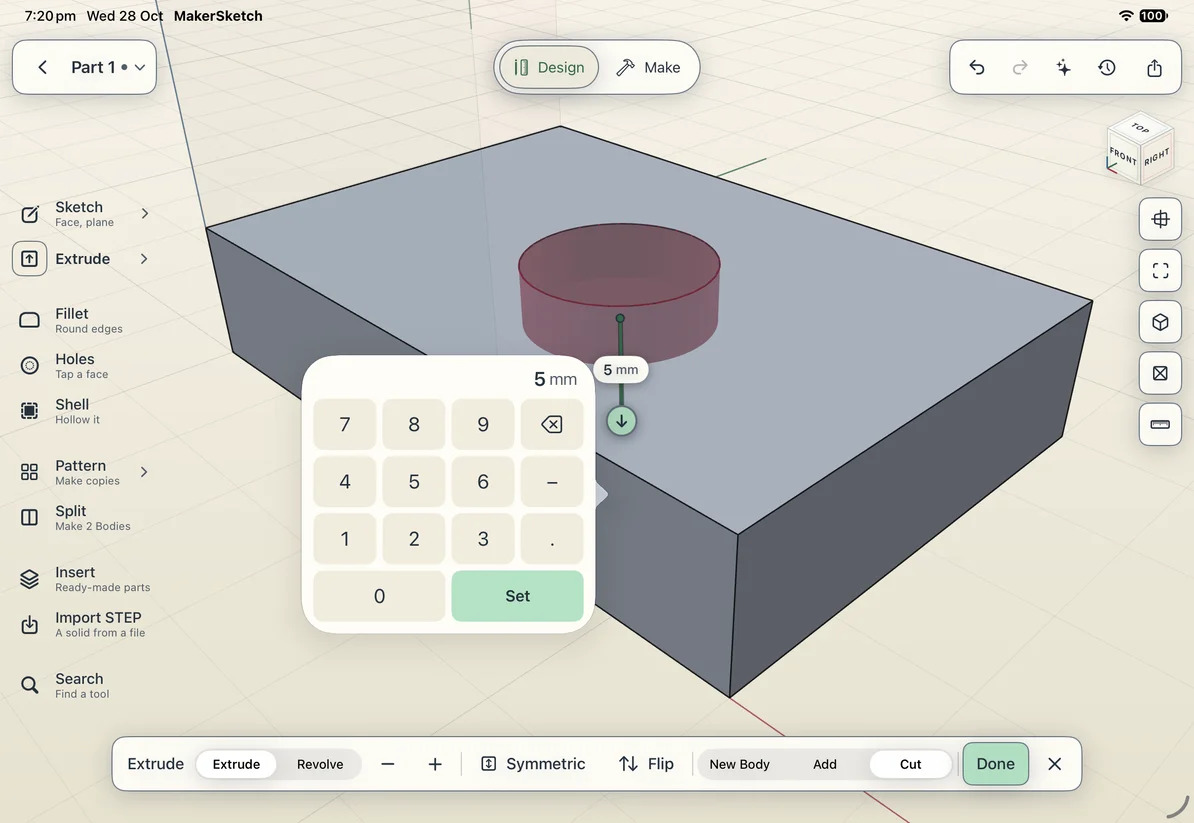
-
Tap
Done, orSeton the keypad. MakerSketch says "Cut 5 mm" withUndo. To make a hole right through, cut deeper than the part is thick.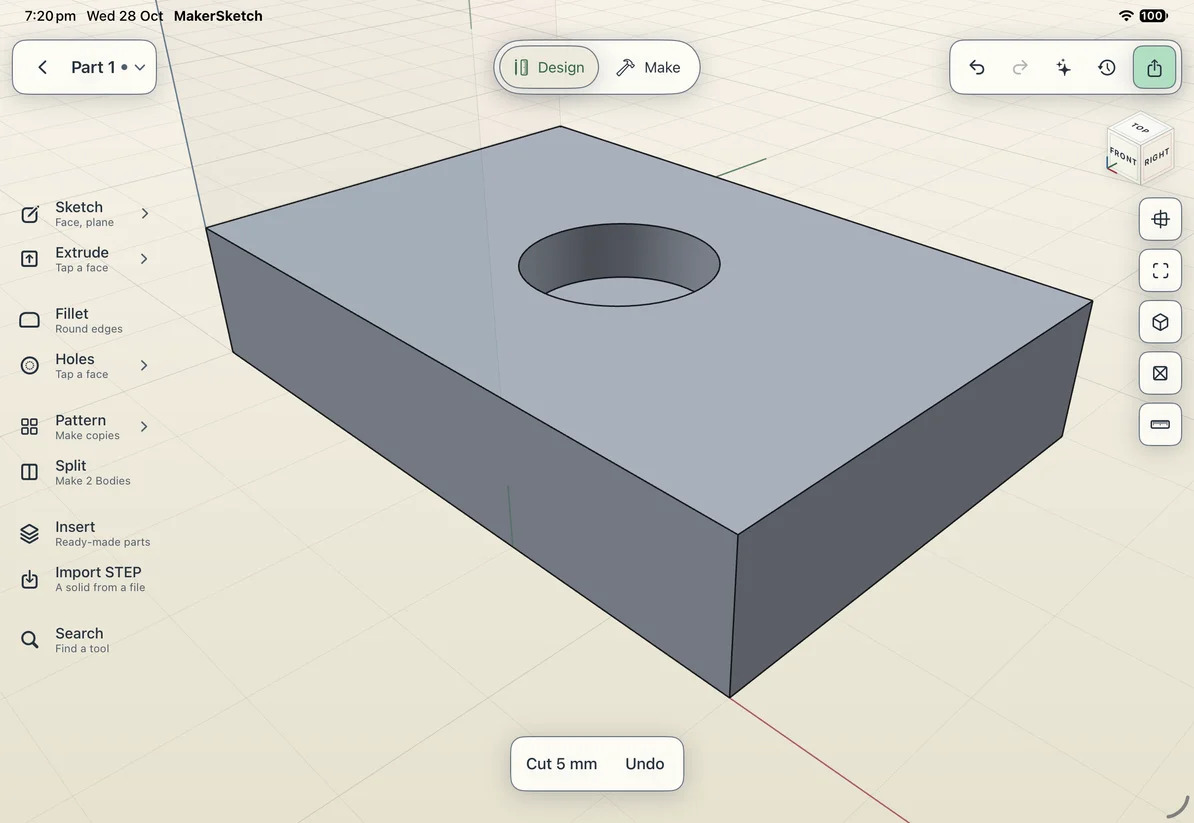


Pull a face of a solid
When every sketch shape is already used, Extrude in the rail pulls a face instead. Tap
Extrude, then tap a flat face when MakerSketch says "Tap a flat face to extrude it". The face's
outline is set up like a sketch shape: drag out to add to the solid, or in to cut.
Options
The Extrude bar holds every option. All of them show in the preview before you tap Done.
| Option | What it does |
|---|---|
| Extrude · Revolve | Switches between pushing the shape straight out and spinning it around a line. |
| Distance | How far the shape goes, in millimetres: drag the arrow, tap − or +, or tap the number and type. A negative number goes the other way. |
Symmetric |
Grows half each way from the sketch, so the solid is centred on it. The distance is then the total thickness. |
Flip |
Sends it the other way from the sketch. Only shown when Symmetric is off. |
Draft |
Leans every wall by this many degrees: a positive number leans them in as they go away from the sketch, a negative one leans them out. Holes lean the other way, so the walls round them keep their slope. 0 is straight. Tap it and type on the keypad. |
New Body |
Makes a separate solid (a Body), even when you sketched on another Body's face: a lid for a box, say. |
Add |
Joins the new shape onto the solid it touches. |
Cut |
Takes the shape away from the solid it goes into. |
You don't have to pick New Body, Add or Cut: the bar picks for you and shows its choice. From a face, pulling out adds and pushing in cuts. From one of the main planes (Top, Front, Right), a shape that runs mostly through solid cuts, one that only touches adds, and one in empty space makes a New Body. Tap a choice yourself to fix it.
To make several shapes at once (the letters of a name, say), tap the first shape, then tap the others. The bar says how many ("3 shapes") and Done makes them all in one step.
Tips
- Tap the
×on the bar to put the shape back without making anything. - Search finds Extrude as "pull", "push" and "raise" too.
If it won't work
Most problems with Extrude don't come with a message. Here's what they look like, most common first.
My shape isn't shaded, and Extrude isn't in the rail
The shape isn't closed. MakerSketch only shades a shape whose lines join end to end all the way round, and only a shaded shape can be extruded. In a part with no solid yet, the rail doesn't offer Extrude at all until there's a closed shape.

Three things leave a shape open:
- A gap. One line stops short of the next. Zoom in on each corner to find it, then draw a line that starts and ends exactly on the two loose ends: the crosshair snaps to an end when it's close.
- An overshoot. A line runs past a corner instead of ending on it. Use
Trimto cut off the extra bit. - A stray line. An extra line joined to a corner of the shape. Delete it.
Then tap Finish Sketch again. The shape is shaded when it's closed.
It went the wrong way
Tap Flip on the bar, or drag the arrow back through the sketch and out the other side. To go
both ways at once, tap Symmetric.
It made a separate solid when I wanted it joined on
The bar picked New Body because the shape doesn't overlap the solid that's already there:
sitting beside it or just touching doesn't count. Tap Add on the bar before you tap Done.
If you've already made it, tap Undo on the message and extrude again with Add.
It joined on when I wanted a separate solid
You sketched on a face of a solid, so pulling out adds to it. Tap New Body on the bar before
Done: it always makes a separate solid, even on another solid's face. A lid for a box is made this way.
The cut didn't go all the way through
A cut goes exactly as deep as its distance. Make it a little deeper than the part is thick, for
example 13 mm for a 12 mm block. If you've already made it, tap Undo and cut again.
The preview disappeared, and the bar says "Hidden inside the part"
You're adding a shape that ends inside the solid, so you can't see it, and it wouldn't change
anything. This happens when you sketch on a plane that runs through the part. Drag the arrow
further, past the number the bar gives, or sketch on the part's top face instead. If you tap Done
anyway, MakerSketch says so afterwards, with Undo.
The bar says "These shapes fill each other's holes"
You picked a shape and the shape inside it: a ring and its middle. Made together, they would give one flat block with no hole. Tap the inner shape again to leave it out.

Done is greyed out
The distance is 0. Drag the arrow or type a number other than 0.
I extruded the wrong thing
Tap Undo on the message that appears, tap undo in the top bar, or tap the screen with two
fingers. Each undo takes back one step.
Messages you might see
When MakerSketch can't do what you asked, it says why. Each message, and what to do.
Making a solid from a sketch
Draft
Pulling a face
In the Assembly view
Last updated 28 October 2026, for MakerSketch 1.0.